Defining a Certification Program
You can use the Certification Program Definition screen
to perform the following:
Specify certification programs
Create optional credentials associated
with a certification
Define various parameters involving the
maximum length of the certification period
Establish the time interval before recertification
Create a list of certification requirements
Provide the links necessary to update the
database from product sales, transcript entries, or direct or manual
uploads of information
Here the certification is defined to the system along
with the requirements for the certification. A requirement can be a single
requirement or many options under a requirement. A requirement can be
tied to a course, product, exam, or even a general requirement that is
not directly tracked by the system.
The process for completing a Certification Program is
as follows:

Once you have defined the certification program, you
can perform the following tasks:
To define a certification program:
1. From
the toolbar, select Certification Definition
> Certification Program Definition.
2. Click
Create New Certification.
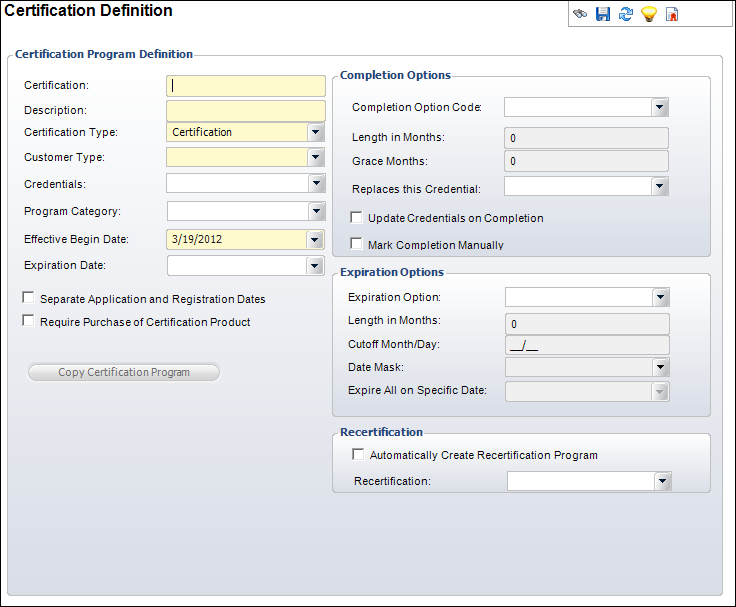
The Certification Definition screen displays, as shown below.
3. Enter
the Certification name and
Description.
4. Select
the Certification Type from
the drop-down.
5. Select
the Customer Type from the
drop-down.
6. If
necessary, select the Credentials
from the drop-down.
7. If
necessary, select the Program Category
from the drop-down.
8. Select
the Effective Begin Date of the
certification program from the drop-down.
9. If
necessary, select the Expiration Date
from the drop-down.
10. Check
the appropriate checkboxes:
· Separate Application and Registration
Dates
· Require Purchase of Certification
Product
11. In
the Completion Options section, perform the following:
a. Select
the Completion Option Code from
the drop-down.
b. If
you selected “Specific Number of Months” as the Completion Option Code,
enter the Lengths in Months and
Grace Months.
c. If
necessary, select the credential that will be replaced upon completion
from the Replaces this Credential
drop-down.
d. Check
the appropriate checkboxes:
· Update
Credentials on Completion
· Mark
Completion Manually
12. In
the Expiration Options section, select the Expiration
Option from the drop-down.
· If
Custom is selected, continue to step 13.
· If
you select Even Years, Odd Years, or Rolling Anniversary, enter a Length in Months and
Date Mask.
· If
you select Masked End Date, enter a Length
in Months, Cutoff Month/Day,
and Date Mask.
· If
you select Specific Date, select a date from the Expire
All on Specific Date drop-down.
13. In
the Recertification section, perform the following:
a. If
necessary, check the Automatically Create
Recertification Program checkbox.
b. Select
the Recertification program from
the drop-down.
14. Click
Save.
| Screen Element |
Description |
| Certification |
Text box. A unique code for the certification program. If a
certification product is defined for the program, the parent product
of the certification product is set to this code. |
| Description |
Text box. The description for the certification program. This
will print on the certification certificate. |
| Certification Type |
Drop-down. The type of certification. For example, Certification
or Recertification. This value cannot be changed once a customer
registers for this certification program. |
| Customer Type |
Drop-down. The customer type associated with the certification
program. Only customers with this customer type can register for
the certification program. For example, Individual or Company.
This value cannot be changed once a customer registers for this
certification program. The customer must be this customer type
in order to register for this certification program. |
| Credentials |
Drop-down. The credential that the customer will receive upon
completion of the certification program. For example, Ph.D. or
MD. This must be different from the Replaces this Credential field. |
| Program Category |
Drop-down. The category for the certification program. For
example, General or Management. |
| Effective Begin Date |
Drop-down. The effective start date of the certification program.
This is the first date that customers can enroll in the certification
program. |
| Expiration Date |
Drop-down. The end date of the certification program. Customers
cannot receive credit toward this certification program after
this date. |
| Separate Application and Registration Dates |
Checkbox. When checked, indicates the application date and
registration date will be separated. If unchecked, these dates
will be the same. If the organization does not require that certification
program registrants first be approved to participate in the program,
then the Application Date will be the same as the Registration
Date. |
| Require Purchase of Certification Product |
Checkbox. When checked, indicates the customer must purchase
the certification product before registering for the certification
program. Activating the certification product order line automatically
open the Product Maintenance screen and creates a certification
program registration record for the customer with the parent product
and product code set to the certification program code. When checked,
the RequiredParentProduct and RequirementProductCode are automatically
set by the system and cannot be modified by the user. Also, when
checked, the Create Order button on the Certification Registration
and Tracking screen will become enable once a new registration
has been created and saved. See Registering
a Customer for a Certification Program for more information. |
| Copy Certification Program |
Button. When clicked, the Copy Certification screen displays
where you can add another certification program with the same
information as the current certification program. |
Completion Options |
| Completion Option Code |
Drop-down. Select the option for completing the certification
program. For example, Specific Number of Months or Unlimited Number
of Months. |
| Length in Months |
Text box. If you selected “Specific Number of Months” as the
Completion Option Code, this field is enabled. The number of months
the certification program must be completed within. |
| Grace Months |
Text box. If you selected “Specific Number of Months” as the
Completion Option Code, this field is enabled. The number of grace
months after the Length in Months that the certification program
can be completed. |
| Replaces this Credential |
Drop-down. The credential that is replaced when the certification
program is completed. For example, Ph.D. or MD. This must be different
from the Credentials field. |
| Update Credentials on Completion |
Checkbox. When checked, indicates the credentials will be automatically
updated for the customer upon completion of the certification
program. |
| Mark Completion Manually |
Checkbox. When checked, indicates you want to manually mark
the certification program as completed when the last requirement
is met. When unchecked, the system will automatically mark a certification
program registration as completed when the last requirement is
marked as complete. |
Expiration Options |
| Expiration Option |
Drop-down. Additional options for the expiration of the certification.
Once you receive the certification, when does it expire. For example,
Custom, Even Years, Masked End Date, Odd Years, Rolling Anniversary,
or Specific End Date. |
| Length in Months |
Text box. The length in months for which a certification is
effective. |
| Cutoff Month/Day |
Text box. The cutoff month and day for a masked end date. |
| Date Mask |
Drop-down. After the cutoff date, you calculate the end date
by adding the months to the certification date and moving to the
next occurrence of the date mask. |
| Expire All on Specific Date |
Drop-down. The specific date the certification expires once
you receive the certification. |
Recertification |
| Automatically Create Recertification Program |
Checkbox. When checked, indicates the recertification program
selected will automatically be created for the certification program.
When this is checked, you must select a Recertification. |
| Recertification |
Drop-down. The recertification program associated with the
certification program. |
|
See Also: