Defining Certification Program Requirements and Requirement Options
If requirements are defined, they must be completed in order for the
customer to receive the certification.
 If
a requirement for certification is that the customer have an active membership,
and the membership is cancelled, the customer has not met the requirement
for certification. To the system, cancelling a membership is like
the membership never happened. This is no different than if a requirement
for certification was that the customer attend a meeting, and then the
meeting registration was cancelled. Personify
assumes that if a membership (or a subscription) is a requirement for
certification, the requirement is that the membership be active for the
term of the certification. If the customer is to get credit for membership,
the end
date should be updated for whatever period of time the customer was
a member, the line status should remain as active, and the line
should be set to "Terminate at End". Therefore, if a membership
is terminated early (i.e., the membership Cycle End Date is updated to
be a date less than the original membership product Cycle End Date and
the Fulfill Status is updated to “T”), if membership was a requirement
for certification, the Certification Status was "COMPLETED",
and if the Certification Expiration Date is less than or equal to the
new membership Cycle End Date but greater than or equal to the current
date, as of 7.4.2 the Certification Expiration Date will be updated to
the new membership Cycle End Date.
If
a requirement for certification is that the customer have an active membership,
and the membership is cancelled, the customer has not met the requirement
for certification. To the system, cancelling a membership is like
the membership never happened. This is no different than if a requirement
for certification was that the customer attend a meeting, and then the
meeting registration was cancelled. Personify
assumes that if a membership (or a subscription) is a requirement for
certification, the requirement is that the membership be active for the
term of the certification. If the customer is to get credit for membership,
the end
date should be updated for whatever period of time the customer was
a member, the line status should remain as active, and the line
should be set to "Terminate at End". Therefore, if a membership
is terminated early (i.e., the membership Cycle End Date is updated to
be a date less than the original membership product Cycle End Date and
the Fulfill Status is updated to “T”), if membership was a requirement
for certification, the Certification Status was "COMPLETED",
and if the Certification Expiration Date is less than or equal to the
new membership Cycle End Date but greater than or equal to the current
date, as of 7.4.2 the Certification Expiration Date will be updated to
the new membership Cycle End Date.
To define requirements and requirement options:
1. Click
Requirement Definition from
the Certification Definitions task category.
The Certification Requirements screen displays, as shown below.
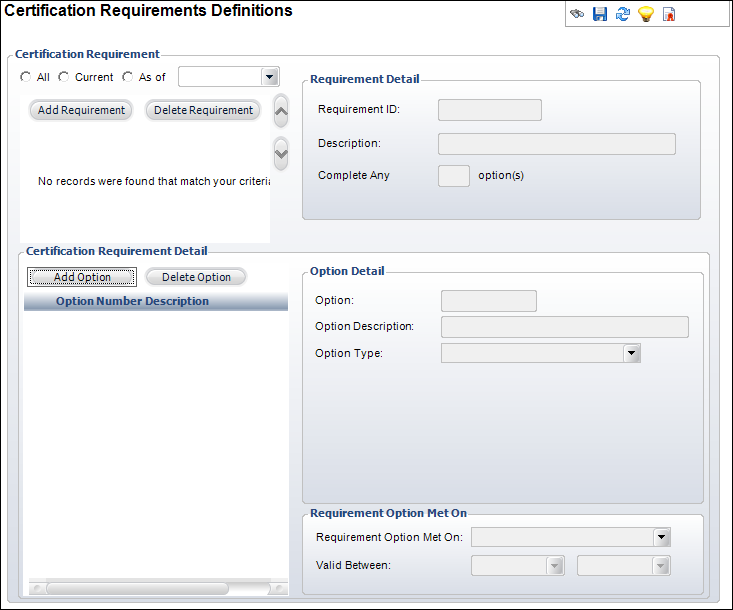
2. If
necessary, filter the requirements using the radio buttons.
3. Click
Add Requirement.
4. Enter
a Requirement ID and Description.
5. Enter
the number of options that must be completed to fulfill the requirement
in the Complete Any field.
6. To
add a Continuing Education (CE) option, perform the following:
a. In
the Certification Requirement Detail section, click Add
Option.
b. If
this is the first requirement detail, the Option
ID defaults to "1". If necessary, you can change
this. This unique identifier will increment by one each time a new requirement
is added.
c. Enter
the Option
Description.
d. Select
"Continuing Education" as the Option Type from
the drop-down.
e. Hit
the Tab button on your keyboard.
The CE Credits section displays, as shown below.
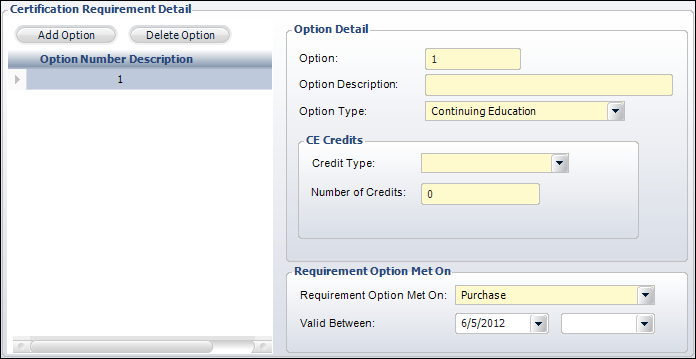
f. Select
the Credit Type from the drop-down.
Values are populated based on the non-fixed TRN "CE_CREDIT_TYPE"
system type.
g. From
the Requirement Option Met On section, the Requirement
Option Met On method defaults to "Purchase". Change this
if necessary.
h. By
default, the requirement begin
date defaults to today. If necessary, select a different Valid
Between begin date from the first drop-down.
i. If
necessary, select the date in which the requirement is no longer valid
from the second Valid Between drop-down.
7. To
add a Certification Program option, perform the following:
a. In
the Certification Requirement Detail section, click Add
Option.
b. If
this is the first requirement detail, the Option
ID defaults to "1". If necessary, you can change
this. This unique identifier will increment by one each time a new requirement
is added.
c. Enter
the Option
Description.
d. Select
"Certification" as the Option Type from
the drop-down.
e. Hit
the Tab button on your keyboard.
The Previous Certification section displays, as shown below.

f. Select
the Previous Certification from
the drop-down.
Values are populated based on the existing certification programs. For
more information, please see Defining
a Certification Program.
g. From
the Requirement Option Met On section, the Requirement
Option Met On method defaults to "Certification". Change
this if necessary.
h. By
default, the requirement begin
date defaults to today. If necessary, select a different Valid
Between begin date from the first drop-down.
i. If
necessary, select the date in which the requirement is no longer valid
from the second Valid Between drop-down.
8. To
add a Course option, perform the following:
a. In
the Certification Requirement Detail section, click Add
Option.
b. If
this is the first requirement detail, the Option
ID defaults to "1". If necessary, you can change
this. This unique identifier will increment by one each time a new requirement
is added.
c. Enter
the Option
Description.
d. Select
"Course" as the Option Type from
the drop-down.
e. Hit
the Tab button on your keyboard.
The Course Code section displays, as shown below.
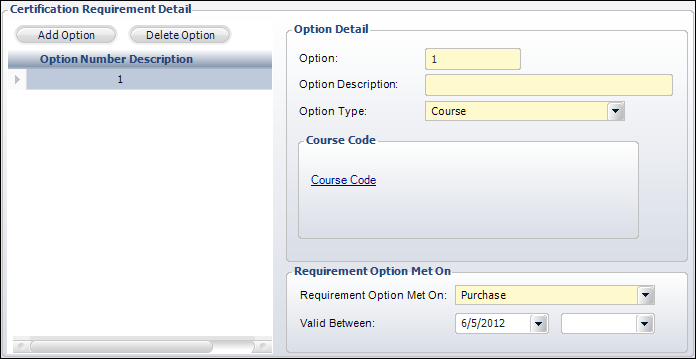
f. Click
the Course Code link to open the
Transcript Course Chooser.
g. Search
for and select the appropriate transcript course.
For more information, please see Creating
a Transcript Course.
h. From
the Requirement Option Met On section, the Requirement
Option Met On method defaults to "Purchase". Change this
if necessary.
i. By
default, the requirement begin
date defaults to today. If necessary, select a different Valid
Between begin date from the first drop-down.
j. If
necessary, select the date in which the requirement is no longer valid
from the second Valid Between drop-down.
9. To
add a Course Type option, perform the following:
a. In
the Certification Requirement Detail section, click Add
Option.
b. If
this is the first requirement detail, the Option
ID defaults to "1". If necessary, you can change
this. This unique identifier will increment by one each time a new requirement
is added.
c. Enter
the Option
Description.
d. Select
"Course Type" as the Option Type from
the drop-down.
e. Hit
the Tab button on your keyboard.
The Course Type section displays, as shown below.

f. Select
the Course Code from the drop-down.
Values are populated based on the non-fixed TRN "COURSE_TYPE"
system type.
g. From
the Requirement Option Met On section, the Requirement
Option Met On method defaults to "Purchase". Change this
if necessary.
h. By
default, the requirement begin
date defaults to today. If necessary, select a different Valid
Between begin date from the first drop-down.
i. If
necessary, select the date in which the requirement is no longer valid
from the second Valid Between drop-down.
10. To
add an Exam option, perform the following:
a. In
the Certification Requirement Detail section, click Add
Option.
b. If
this is the first requirement detail, the Option
ID defaults to "1". If necessary, you can change
this. This unique identifier will increment by one each time a new requirement
is added.
c. Enter
the Option
Description.
d. Select
"Exam" as the Option Type from
the drop-down.
e. Hit
the Tab button on your keyboard.
The Exam section displays, as shown below.
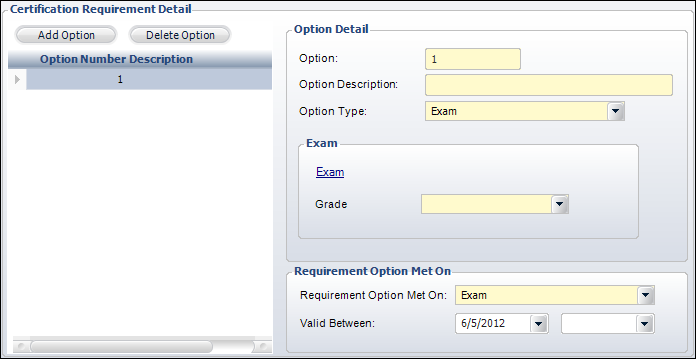
f. Click
the Exam link to open the Transcript
Exam Chooser.
g. Search
for and select the appropriate transcript exam.
For more information, please see Creating
a Transcript Exam.
h. Select
the Grade from the drop-down.
Values are populated based on the non-fixed TRN "GRADE" system
type.
i. From
the Requirement Option Met On section, the Requirement
Option Met On method defaults to "Exam". Change this
if necessary.
j. By
default, the requirement begin
date defaults to today. If necessary, select a different Valid
Between begin date from the first drop-down.
k. If
necessary, select the date in which the requirement is no longer valid
from the second Valid Between drop-down.
11. To
add a Miscellaneous option, perform the following:
a. In
the Certification Requirement Detail section, click Add
Option.
b. If
this is the first requirement detail, the Option
ID defaults to "1". If necessary, you can change
this. This unique identifier will increment by one each time a new requirement
is added.
c. Enter
the Option
Description.
d. Select
"Miscellaneous" as the Option Type from
the drop-down.
e. Hit
the Tab button on your keyboard.
The Miscellaneous Requirements section displays, as shown below.
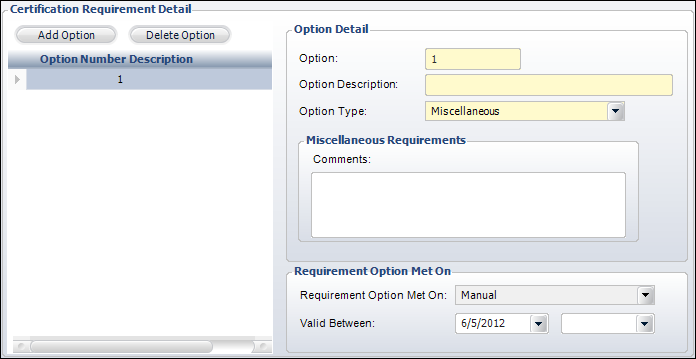
f. If
necessary, enter any Comments.
g. From
the Requirement Option Met On section, the Requirement
Option Met On method defaults to "Manual" and cannot
be changed.
h. By
default, the requirement begin
date defaults to today. If necessary, select a different Valid
Between begin date from the first drop-down.
i. If
necessary, select the date in which the requirement is no longer valid
from the second Valid Between drop-down.
12. To
add a Product option, perform the following:
a. In
the Certification Requirement Detail section, click Add
Option.
b. If
this is the first requirement detail, the Option
ID defaults to "1". If necessary, you can change
this. This unique identifier will increment by one each time a new requirement
is added.
c. Enter
the Option
Description.
d. Select
"Product" as the Option Type from
the drop-down.
e. Hit
the Tab button on your keyboard.
The Product section displays, as shown below.
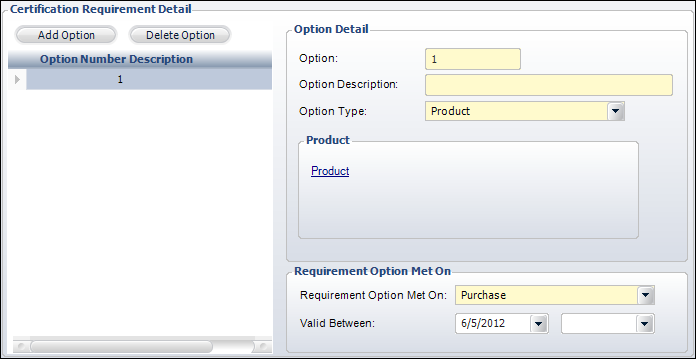
f. Click
the Product link to open the Product
Chooser.
g. Search
for and select the appropriate product.
h. From
the Requirement Option Met On section, the Requirement
Option Met On method defaults to "Purchase". Change this
if necessary.
i. By
default, the requirement begin
date defaults to today. If necessary, select a different Valid
Between begin date from the first drop-down.
j. If
necessary, select the date in which the requirement is no longer valid
from the second Valid Between drop-down.
13. To
add a Transcript Program option, perform the following:
a. In
the Certification Requirement Detail section, click Add
Option.
b. If
this is the first requirement detail, the Option
ID defaults to "1". If necessary, you can change
this. This unique identifier will increment by one each time a new requirement
is added.
c. Enter
the Option
Description.
d. Select
"Transcript" as the Option Type from
the drop-down.
e. Hit
the Tab button on your keyboard.
The Transcript Program section displays, as shown below.
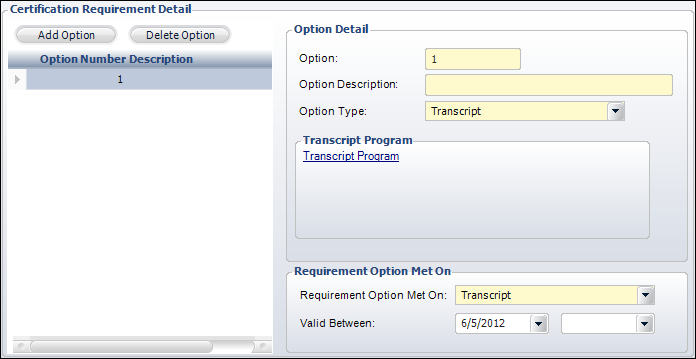
f. Click
the Transcript Program link to
open the Transcript Program Chooser.
g. Search
for and select the appropriate transcript program.
For more information, please see Creating
a Transcript Exam.
h. Select
the Grade from the drop-down.
Values are populated based on the non-fixed TRN "GRADE" system
type.
i. From
the Requirement Option Met On section, the Requirement
Option Met On method defaults to "Transcript". Change
this if necessary.
j. By
default, the requirement begin
date defaults to today. If necessary, select a different Valid
Between begin date from the first drop-down.
k. If
necessary, select the date in which the requirement is no longer valid
from the second Valid Between drop-down.
14. Click
Save.