Changing the Status of a Membership
Order
Although it is rare, membership
statuses can be manually changed via the Fulfill Status drop-down on the
Line Detail and Pricing tab of the Line Item Details screen, when appropriate.
There are three Fulfill Statuses that affect whether a member receives
member benefits.
Expel - this would be a permanent decision
by staff to remove a member from the association’s membership roster.
All member benefits and renewal processes will ignore this status.
Suspend - this is a temporary membership
state that staff can set if an issue arises. All member benefits,
member counts, and renewal processes exclude any customer with this
status until a staff member reverts the customer’s Fulfill Status
back to Active.
Terminate-at-End - if a member calls
Customer Service and decides that they do not want to continue membership
after the end of their current period, then select this status. They
will continue to receive member benefits until the membership End
Date has past and the renewal process will skip this status. As of
7.4.2, when you change the status of a MBR or SUB product order to
"T", the system sets the Grace Date for the order to the
Cycle End Date.
 Personify
assumes that if a membership (or a subscription) is a requirement for
certification, the requirement is that the membership be active for the
term of the certification. If the customer is to get credit
for membership, the end
date should be updated for whatever period of time the customer was
a member, the line status should remain as active, and the line should
be set to "Terminate at End".
Therefore, if a membership is terminated early (i.e., the membership Cycle
End Date is updated to be a date less than the original membership product
Cycle End Date and the Fulfill Status is updated to “T”), if membership
was a requirement for certification, the Certification Status was "COMPLETED",
and if the Certification Expiration Date is less than or equal to the
new membership Cycle End Date but greater than or equal to the current
date, as of 7.4.2 the Certification Expiration Date will be updated to
the new membership Cycle End Date.
Personify
assumes that if a membership (or a subscription) is a requirement for
certification, the requirement is that the membership be active for the
term of the certification. If the customer is to get credit
for membership, the end
date should be updated for whatever period of time the customer was
a member, the line status should remain as active, and the line should
be set to "Terminate at End".
Therefore, if a membership is terminated early (i.e., the membership Cycle
End Date is updated to be a date less than the original membership product
Cycle End Date and the Fulfill Status is updated to “T”), if membership
was a requirement for certification, the Certification Status was "COMPLETED",
and if the Certification Expiration Date is less than or equal to the
new membership Cycle End Date but greater than or equal to the current
date, as of 7.4.2 the Certification Expiration Date will be updated to
the new membership Cycle End Date.
To change
a membership status:
1. From the Order
Entry screen, select the appropriate line item.
2. Right-click the
line item and select Show Full Line Item Details.
The Line Item Details screen displays, as shown below.
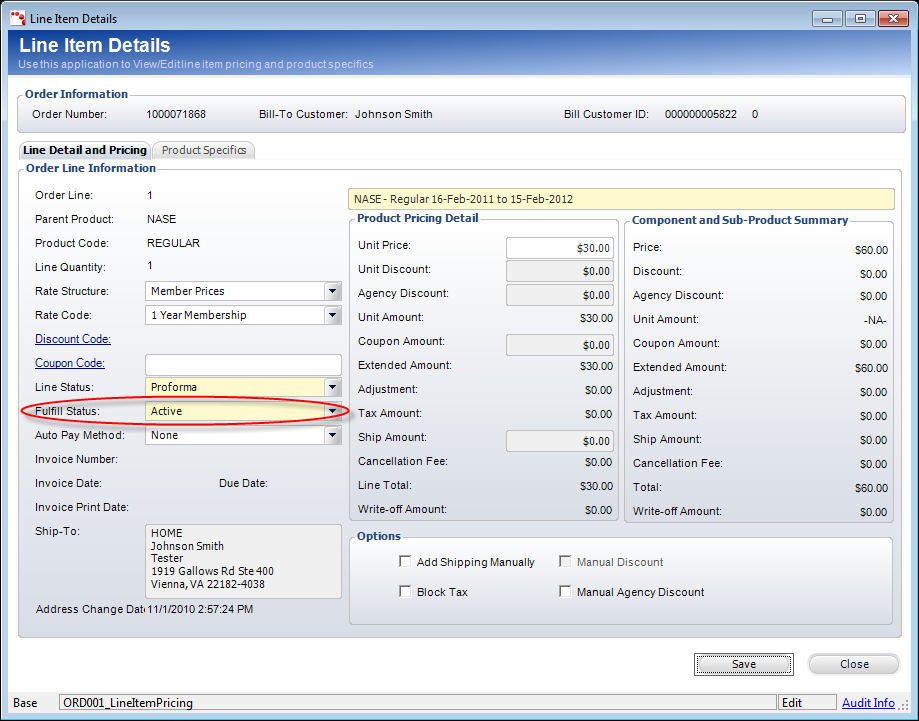
3. From the Fulfill
Status drop-down (highlighted above), select one of the options described
above.
4. Click Save.