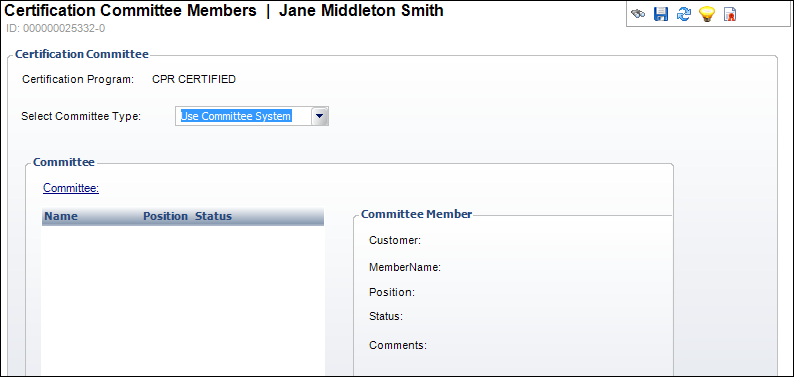
| Screen Element |
Description |
| Select Committee Type |
Drop-down. The type of committee that reviews the information
for the certification. |
Committee |
| Committee |
Link. When clicked, the Customer Chooser screen displays. Search
for a committee associated with the certification. |
Ad Hoc Committee |
| Add Ad Hoc Member |
Button. If you selected “Ad hoc” as the Committee Type, this
button is enabled. When clicked, the Committee Member fields are
enabled to enter an ad-hoc committee. |
| Delete Ad Hoc Member |
Button. If you selected “Ad hoc” as the Committee Type, this
button is enabled. When clicked, the highlighted ad-hoc member
is deleted. |
| Customer |
Link. If you selected “Ad hoc” as the Committee Type, this
field is enabled. When clicked, the Customer Chooser screen displays.
Search for a customer to be a member of the ad-hoc committee. |
| Position |
Drop-down. If you selected “Ad hoc” as the Committee Type,
this field is enabled. The position the customer holds in the
committee. For example, Chairman or Secretary. |
| Participation Status |
Drop-down. If you selected “Ad hoc” as the Committee Type,
this field is enabled. The status of the customer’s participation
in the committee. For example, Inactive or Active. |
| Comments |
Text box. If you selected “Ad hoc” as the Committee Type, this
field is enabled. Enter any comments related to the ad-hoc committee. |